To set up Gmail SMTP in Perfex CRM will involve the following steps:
- Enable 2-Step Verification in your Google Account,
Enable 2-Step Verification: Go to your Google Account > Security and turn on 2-Step Verification if it's not already on.
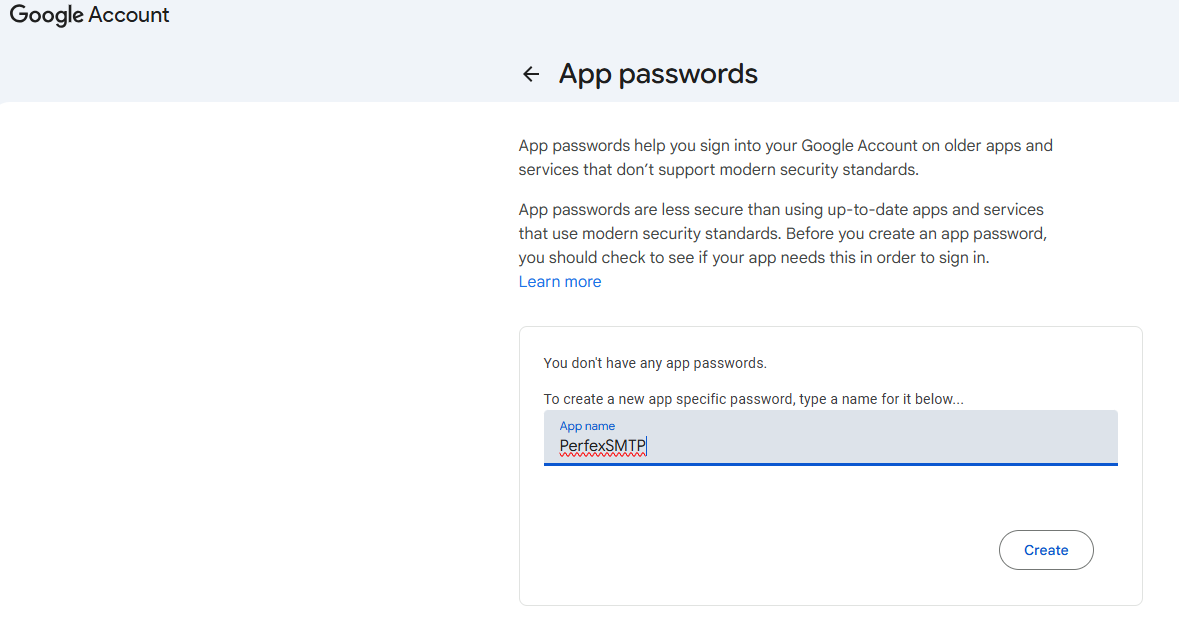
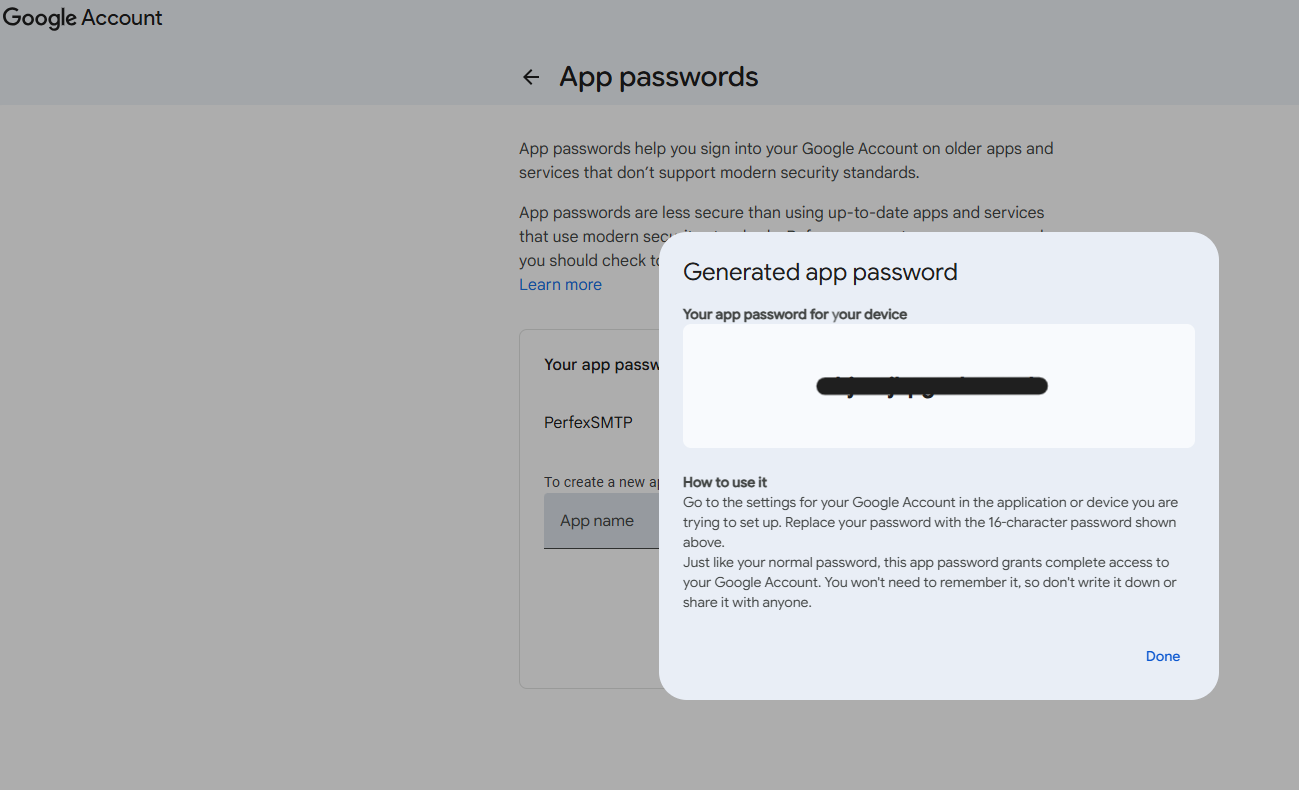
Generate an App Password: In the same Security section, find "App passwords," select "Other (Custom name)" or "Mail," type "Perfex CRM," and click "Generate." Copy the generated 16-digit password.
-
Configure Perfex CRM for email
Navigate to Email Settings: Log in to Perfex CRM and go to Setup > Settings > Email.
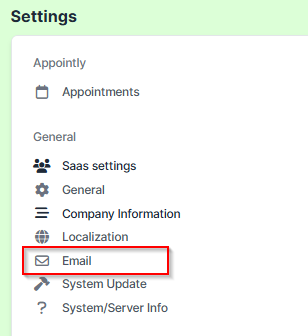
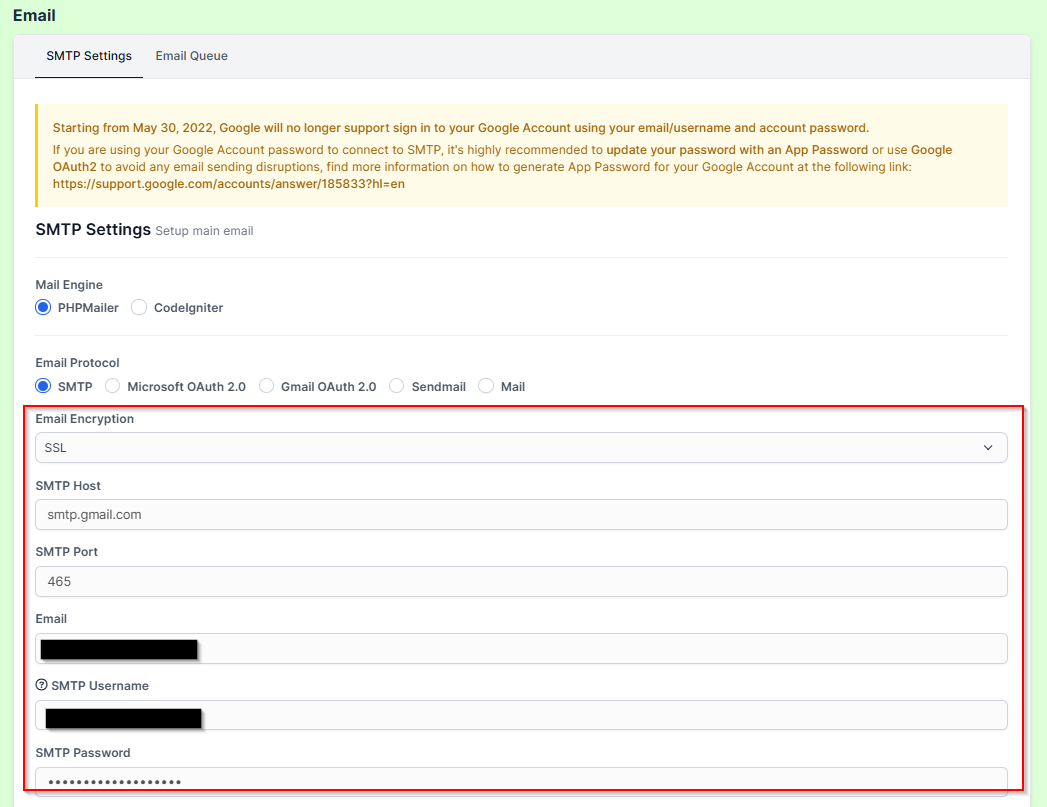
Enter SMTP Details:Host: smtp.gmail.com
Port: 587 (Recommended for TLS) or 465 (for SSL)
Encryption: TLS or SSL (match your chosen port)
Username: Your full Gmail address (e.g., yourname@gmail.com)
Password: The App Password you generated (not your regular password).
From Email & From Name: Your Gmail address and your company name.
-
Send Test Email: Scroll down to "Send Test Email," enter your email address, and click "Submit" to confirm it works.

Important Notes
Cron Jobs: For automation (invoices, reminders), you must also set up cron jobs as detailed in Perfex's documentation.
Security: Using an App Password with 2-Step Verification is crucial for secure connection.